Creating an effective dashboard shouldn’t be a chore, but traditional BI tools often make it one. Teams ignore dashboards when they don’t answer real questions, are too complex, buried in a separate tool, or feel untrustworthy. Those are design problems, not user problems.
This guide walks you step by step through creating a useful dashboard in Daymark—from connecting your data to sharing a dashboard with your team.
What is Daymark (and Why Use It for Dashboards)?
Daymark is an AI-powered analytics platform that helps you create interactive dashboards in minutes—no coding, SQL, or design skills required.
Instead of wrestling with a BI tool, you:
- Connect your data (Google Sheets, CSVs, or PostgreSQL)
- Ask questions in plain English
- Get instant charts and tables
- Add the best answers into a dashboard you can monitor over time
Whether you’re a product manager, marketer, or business leader, Daymark turns raw data into decisions with a simple chat‑like workflow.
Before You Start: What You’ll Need
To follow this guide, you only need:
- Access to Daymark
- At least one data source you want to use, such as:
- Google Sheets
- CSV files
- PostgreSQL
Once you have that, you’re ready to build your first dashboard.
Step 1: Connect Your Data
First, connect the data you want to analyze.
1. Open Daymark
Log in to your Daymark workspace.
2. Open the data connection menu
Click the arrow icon on the chatbox to open more options.
3. Choose “Connect New Source”
From the menu, select “Connect New Source.”
4. Pick your data source
Choose where your data lives, for example:
- Google Sheets
- CSV file upload
- PostgreSQL
5. Complete the connection
Follow the prompts to grant access or upload your file. Uploading files takes just a few seconds.
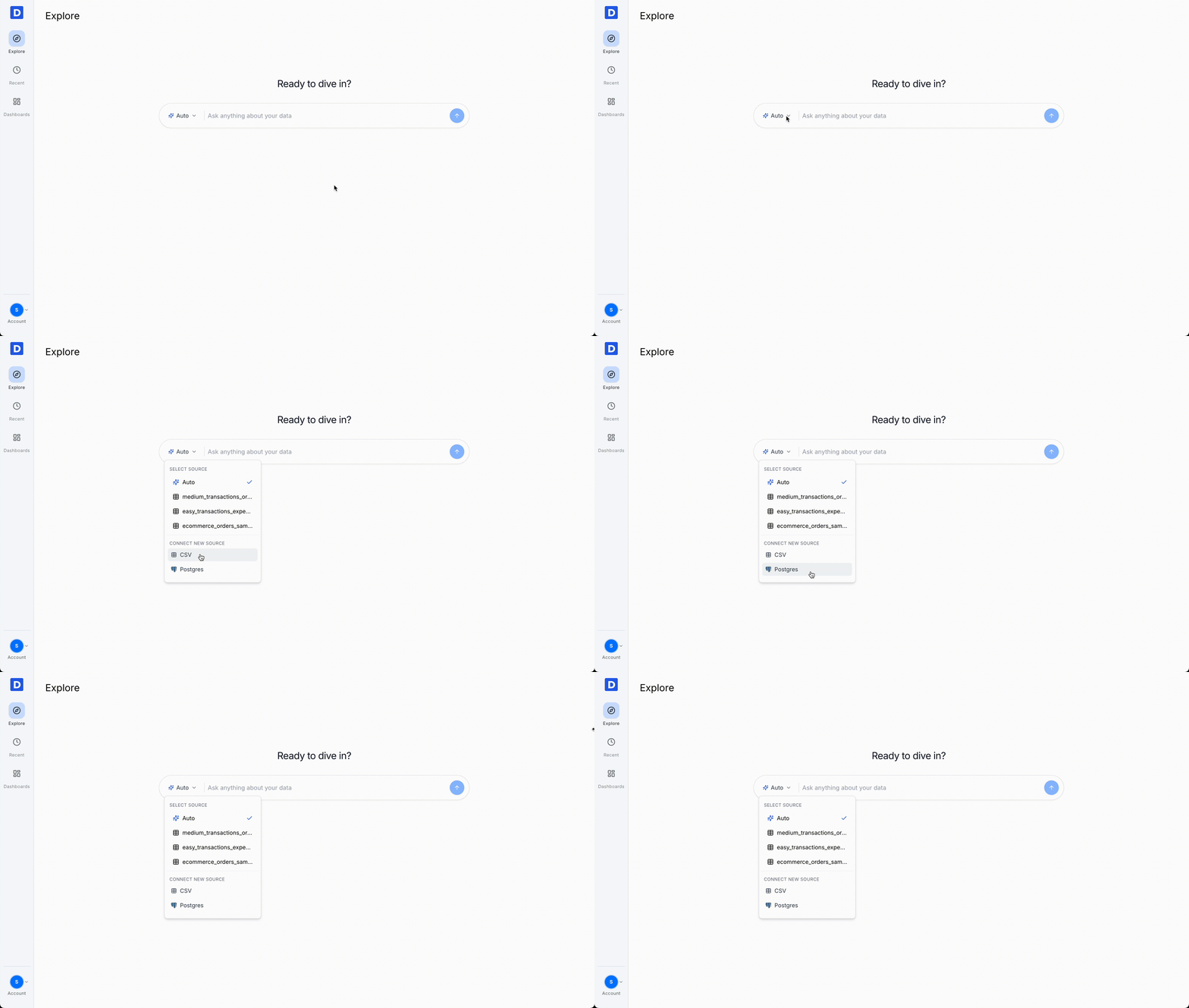
Once connected, Daymark automatically indexes your data, so you can immediately start asking questions—no heavy ETL, modeling, or schema setup required.
Step 2: Ask Questions in Plain English
With your data connected, you can now explore it using natural language.
1. Type your question in the chat box
Write your question as if you’re talking to a colleague, for example:
- “What were our total sales last month by region?”
- “Which product had the highest daily active users this quarter?”
2. Use normal language, not technical terms
You don’t need to know your database schema, table names, or SQL syntax. Just describe what you want to see.
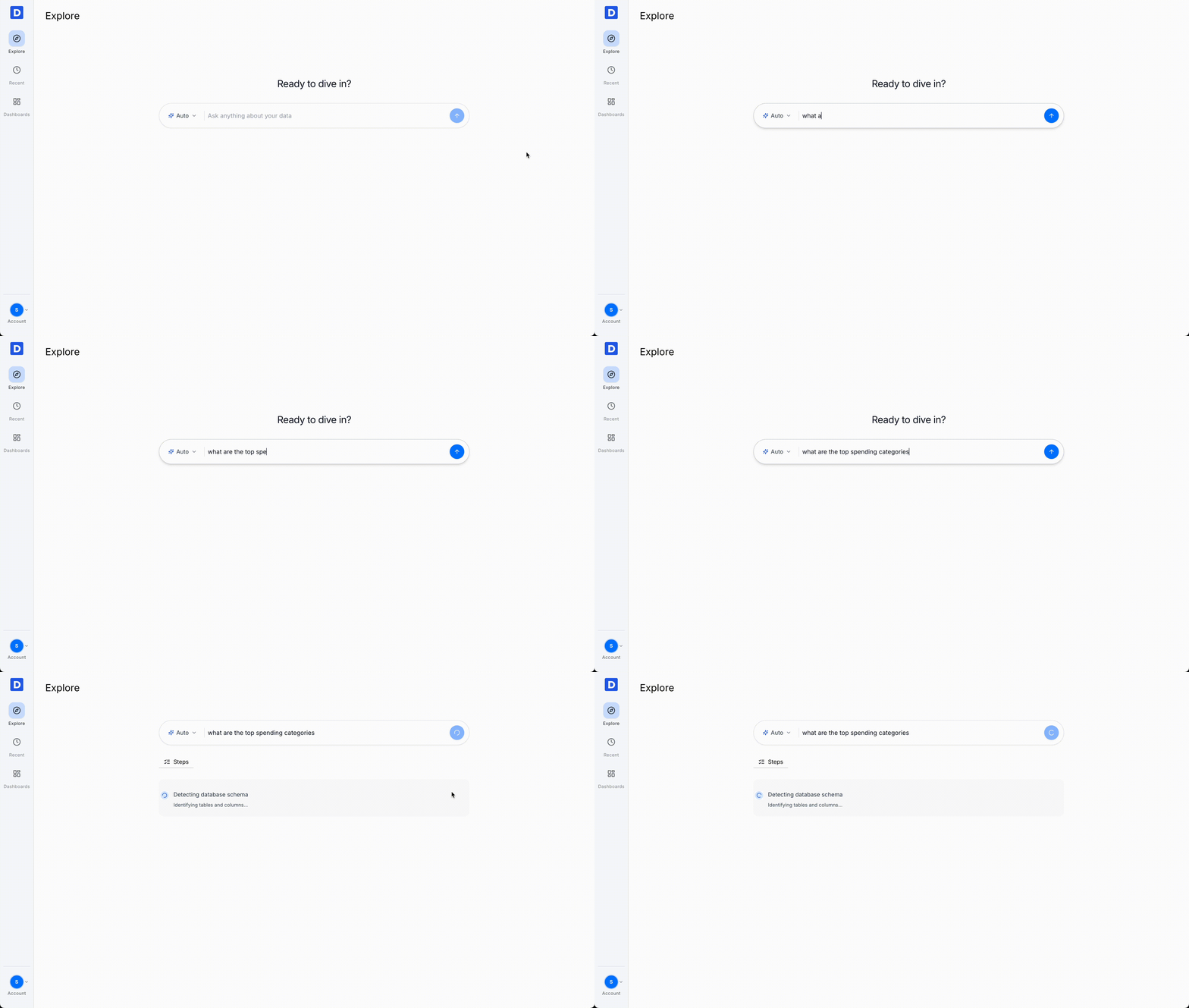
Daymark’s AI interprets your intent, finds the right data, and runs the analysis for you.
Step 3: Review the Visual Answer
Daymark returns an answer as a chart or table based on your question.
- For comparisons, you’ll typically get a bar chart
- For trends over time, a line chart
- For detailed records, a table
For example:
- Ask “Show me the revenue trend” → you’ll see a time‑series line graph
- Ask “Top 10 products by orders” → you’ll see a ranked bar chart
Because Daymark auto‑selects a suitable visualization type, you avoid the usual back‑and‑forth of picking chart types and formatting. You go directly from question → visual insight.
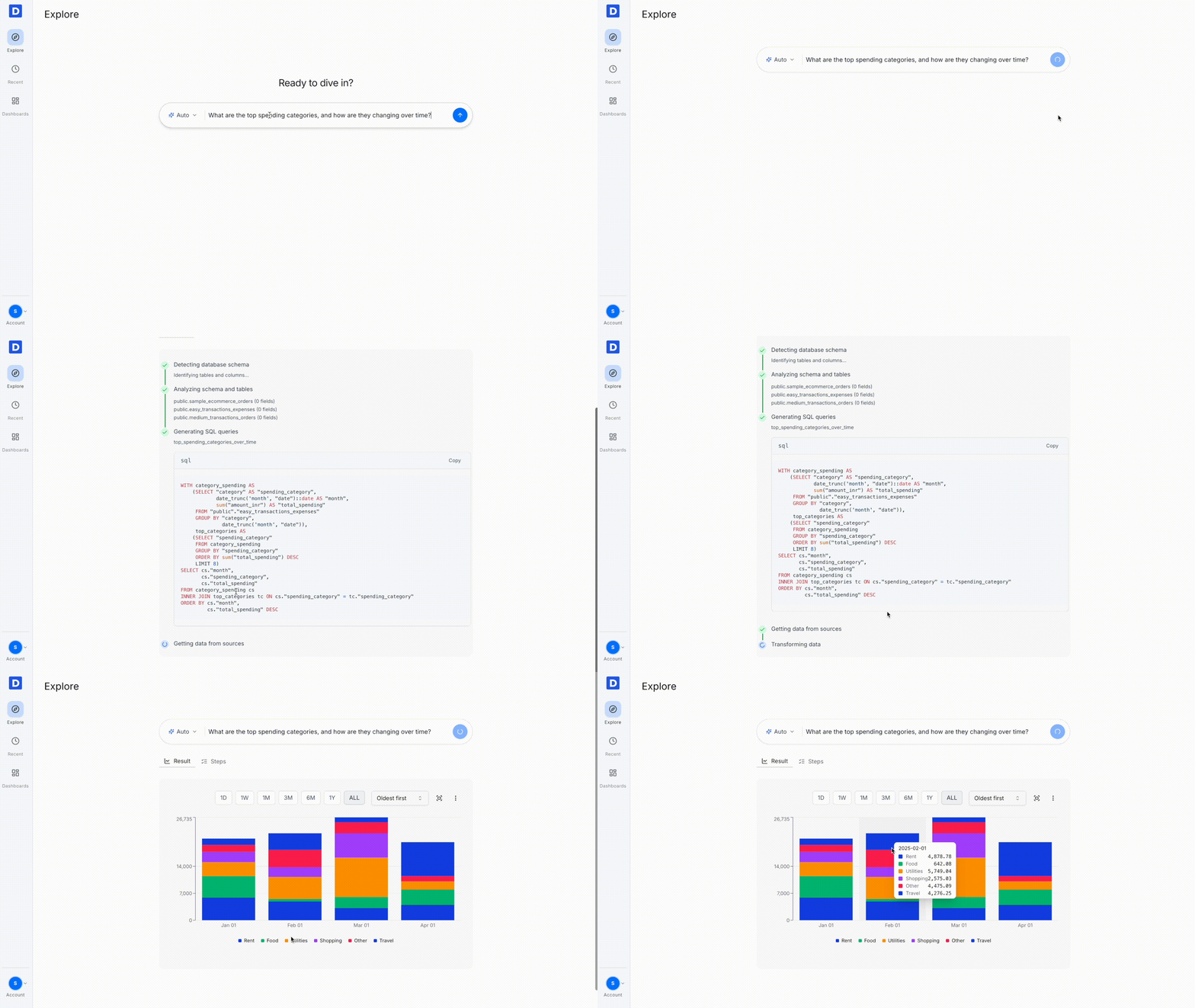
If the result isn’t exactly what you need, you can refine your question and instantly get an updated visual.
Step 4: Build Your Dashboard by Adding Insights as you Explore
Daymark makes dashboard creation feel natural. Instead of starting with an empty canvas, your dashboard grows organically from the insights you discover.
1. Explore your data and generate charts
Think of the recurring metrics you want to track. For example, you might ask:
- “Daily sign‑ups vs. conversions this month”
- “Monthly churn rate by plan”
- “Top 10 products by revenue this quarter”
Each of these questions will return a chart or table.
2. Add any chart to a dashboard in one click
When you see an answer you want to track:
-
Click the three-dot (⋮) menu on the top-right of the chart and select "Add to Dashboard".
You’ll now see two options:
-
Create a New Dashboard: Perfect when you’re starting something fresh like “Acquisition Metrics” or “Product Health Overview.”
-
Add to an Existing Dashboard: All previously created dashboards appear in the list, so you can drop a chart exactly where it belongs.
-
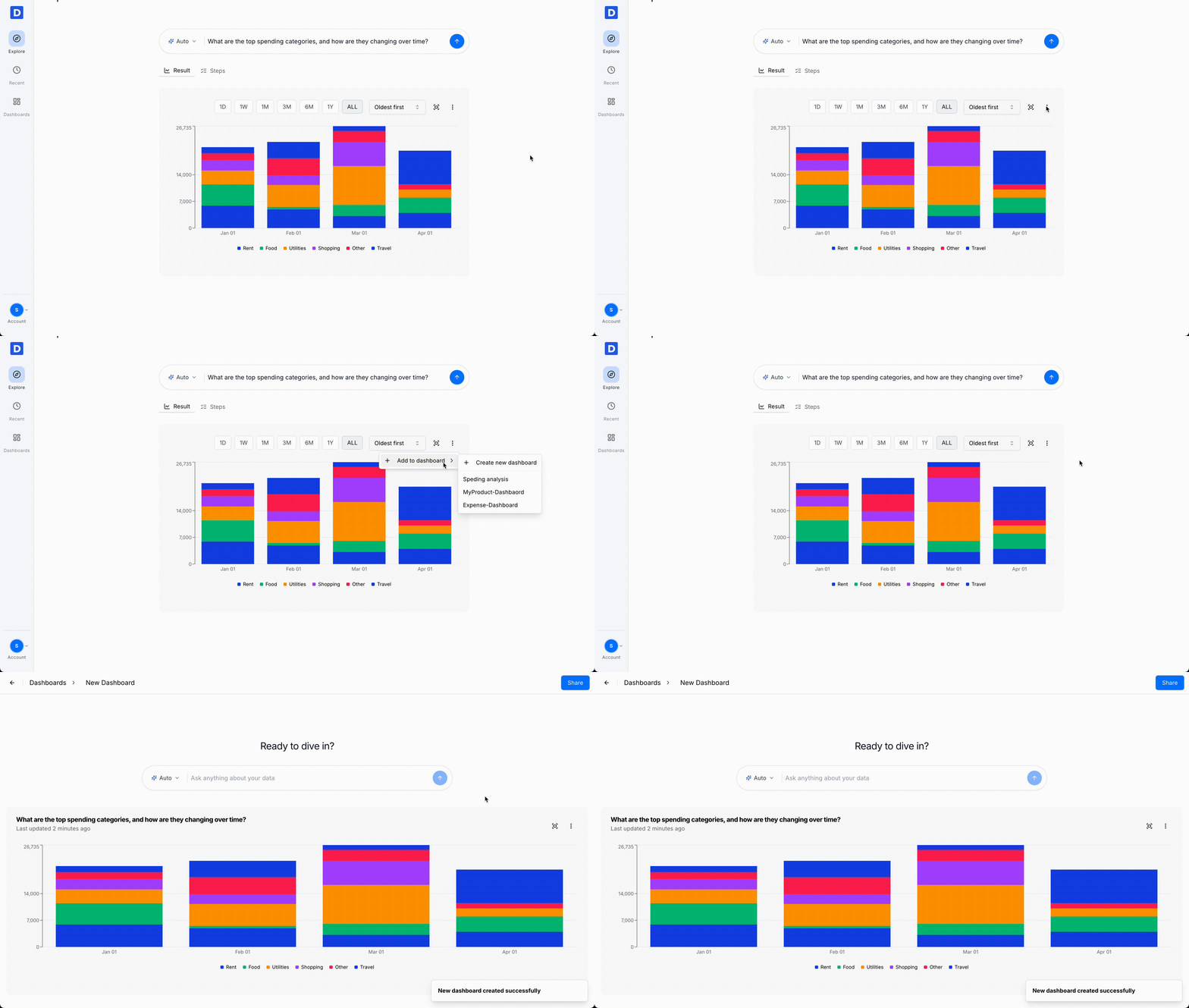
With one action, your insight becomes part of a living dashboard.
Step 5: Share and Keep the Dashboard
Once your dashboard is ready, the next step is making sure people actually use it.
5.1 Share with your team
Daymark makes it easy to share dashboards:
-
Enter your teammate’s email to give them access.
-
When you click Share, they receive a password-protected link that opens the same dashboard view.
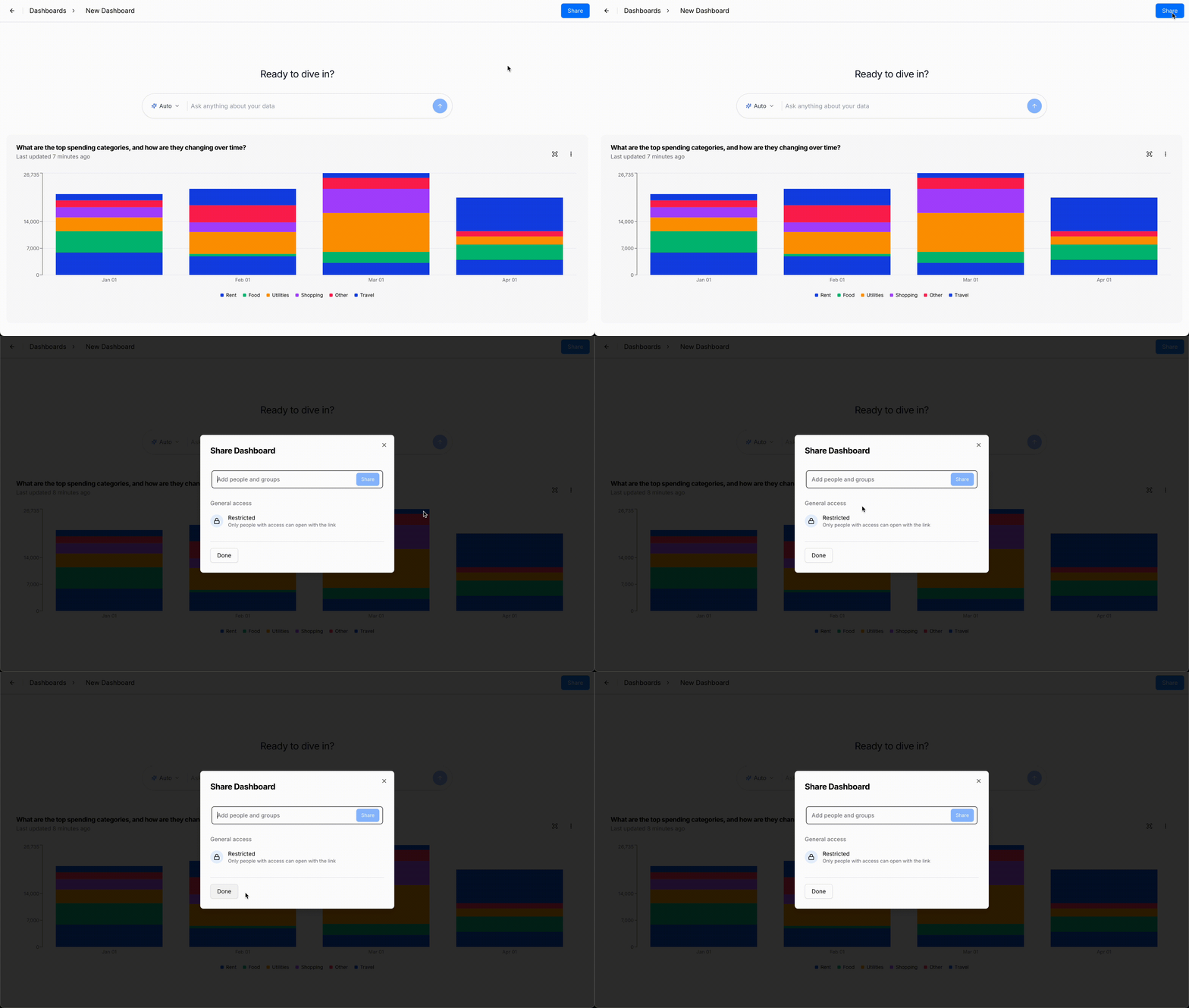
Everyone sees the same, up‑to‑date charts powered directly by your data source.
Putting It All Together
By following these steps, even non‑technical users can build a polished, interactive dashboard in minutes:
- Connect your data (Sheets, CSV, or PostgreSQL)
- Ask questions in plain English
- Let Daymark generate charts and tables for you
- Add the best answers into a dashboard
- Share and automate updates for your team
A product manager might create a Product Health Dashboard by asking about user growth, engagement, and churn, then adding those answers. A sales leader could build a Weekly Sales Report that tracks pipeline, deals closed, and performance by region the same way.
In each case, the dashboard reflects real questions and decisions, not a generic pile of charts.
Learn More & Take the Next Step
Daymark redefines how teams interact with data—from complex, static dashboards to AI‑driven visual answers anyone can create.
If you’re ready to go deeper, explore these resources:
- Product Analytics with Daymark — see how Daymark uncovers user behavior and product performance.
- Sales Performance — learn how to track deals, pipeline, and conversion rates in real time.
- Revenue Growth — explore how AI-powered dashboards help uncover revenue trends and profitability drivers.
- Analytics Dashboard — discover analytics dashboards and why they matter.
With Daymark, dashboards are no longer a bottleneck—they’re your fastest path from question to clarity.
Frequently Asked Questions (FAQs)
Do I need SQL or BI expertise to use Daymark?
No. You can ask questions in plain English and Daymark will translate them into the right queries automatically and return charts, tables, or summaries.
What data sources can I connect to Daymark?
Most teams start with Google Sheets or CSV uploads and can also connect SQL databases and data warehouses such as PostgreSQL.
Can I share dashboards with my team?
Yes. You can share access directly and also schedule automated summaries to email or chat so teammates receive insights where they already work.
About the author

Co-Founder, Daymark
Karan is a co-founder of Daymark, where he builds the connections between Shopify, ad platforms, and warehouses that turn scattered store data into one source of profit truth. He writes about Shopify analytics, data integration, and using AI to query store data without SQL.
LinkedIn