
Know which Google Ads spend is driving results
Google Ads changes daily, but reporting spend and results can take time. Connect Google Ads to Daymark to review performance as clear visuals and keep a dashboard for weekly reporting.
Ad reporting can fall behind performance
Frequent changes
Budgets, keywords, and campaigns move quickly.
Results are split across tools
Spend is in Ads while outcomes may be in analytics or CRM.
Hard to summarize
It takes time to explain what changed and why.
How Daymark works with Google Ads
Keep Google Ads reporting clear and consistent
Connect your ad account, ask questions about spend and outcomes, then save the charts to dashboards. This makes it easier to review performance and share updates with team.
Connect Google Ads
Sign in with OAuth and connect one or more ad accounts with read-only access.

Ask a question
Ask about spend, CPA, ROAS, and performance by campaign or ad group.
Build a dashboard
Save performance views to dashboards for weekly reporting and pacing.
An AI workspace for trustworthy metrics
Ask questions in plain English, use data from multiple sources, and save answers as dashboards your team can share. No SQL required.
Ask questions and get clear answers
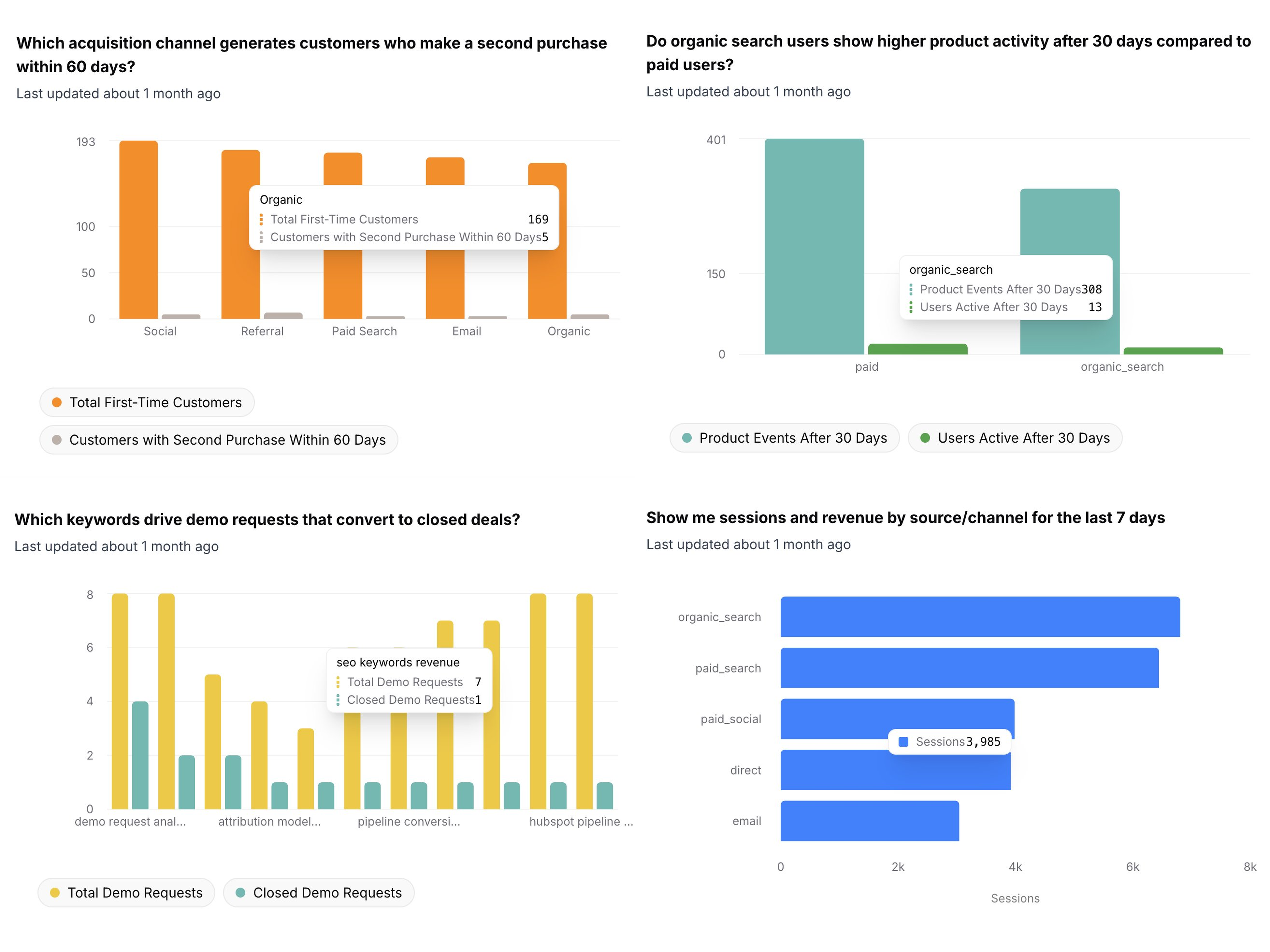
Ask a question and Daymark returns a chart, table, or summary that answers it. Save the result when it is useful.
Use multiple data sources in one place
Bring key metrics from tools like HubSpot, Ads, Analytics, Sheets, and Postgres into one workspace.
 HubSpotGoogle Ads
 Google Analytics
Dashboards your team can share
Save answers to dashboards so your team can review the same metrics. Share dashboards for weekly updates, planning, and reviews.
Your data stays yours
Daymark is built for teams that handle sensitive business data. Read-only access, minimum permissions, and AI that never trains on your data.
Access
Read-only access with least privilege
Daymark uses the minimum scopes required for every integration and never writes to your production systems. All connectors are read-only by design.
- Read-only connectors
- No production writes
- Scoped database access
AI safeguards
Built for safe AI analysis
Our AI agents work only with schema metadata and limited query results to generate insights. Your underlying data is never used to train models.
- No training on your data
- AI agents cannot modify your systems
Connect Google Ads in Daymark
Start exploring your data with read-only access in minutes.